

Facilitator notes
We think about our AI tooling in three big chunks: developer environments, multi-step tasks & running agents, and building your own apps.
This session introduces non-engineers to IDEs, cloud dev environments, and AI coding assistants. We believe the Venn diagram of who counts as a 'builder' is morphing - more roles are moving into that circle over time. That's why we train PMs and designers to commit code, open pull requests, and work confidently and safely in a live codebase, as part of what the role now looks like. The goal is to empower every role in the software development process to become builders: safely exploring, prototyping, and collaborating on real work.
Below is the curriculum we ran, just so you can see one way to put this into practice. It'll keep evolving, and yours will look different based on your own organization's tools.

Get started with cloud development environments and AI coding assistants
Atlassian AI Builders Week curriculum
Take what's relevant and make it your own.
Core concepts: IDEs and development environments
What is an IDE?
An IDE (Integrated Development Environment) is to developers what a design tool is to designers - it's the main workspace where work happens.
Typical features
- File explorer to navigate the codebase
- Editor to view and edit files
- Integrated terminal for running commands
- Optional AI assistant panel
Popular examples
- Visual Studio Code (VS Code) - free, open source
- Cursor - built on VS Code with deep AI
- Browser-based IDEs - VS Code-like in the browser
What is a development environment?
A development environment is where code runs while you're building and testing changes.
Local environment
- Clone a repository onto your laptop
- Install runtimes (e.g. Node.js), databases, CLIs
- Run a local server (e.g. localhost:3000)
Cloud environment
- Code and tools live in the cloud
- Connect via browser IDE or local IDE
- No full stack installation needed
Cloud dev environments (like GitHub Codespaces, JetBrains Space, or internal "DevBox" tools) are becoming the norm because they're faster to spin up, give everyone a consistent setup, and reduce "works on my machine" problems.
Why non-engineers should care
You don't need to become a full-time engineer to benefit from these tools.
Understand the real product
See how the application is structured in code, not just in mockups.
Prototype more realistically
Tweak UI, copy, or interactions in a running environment instead of waiting for an engineer.
Collaborate better
Speak the same language as your dev team, and even pair directly in the same environment.
Learn faster
An AI assistant can explain files, find components, and scaffold small changes for you.
A safe way to start: browser-based dev environments
The easiest on-ramp is a browser-based dev environment provided by your organization or platform. The exact product name may differ, but the experience is similar:
Open a URL
Environment spins up in the cloud
Get a VS Code-style interface in your browser
What you typically get out of the box:
- Access to the right repository or monorepo
- Correct versions of runtimes and tools (e.g. Node, build tools)
- Pre-installed extensions, including AI assistants
- A terminal window connected to the cloud environment
Navigating the environment
In a typical browser-based IDE you'll see:
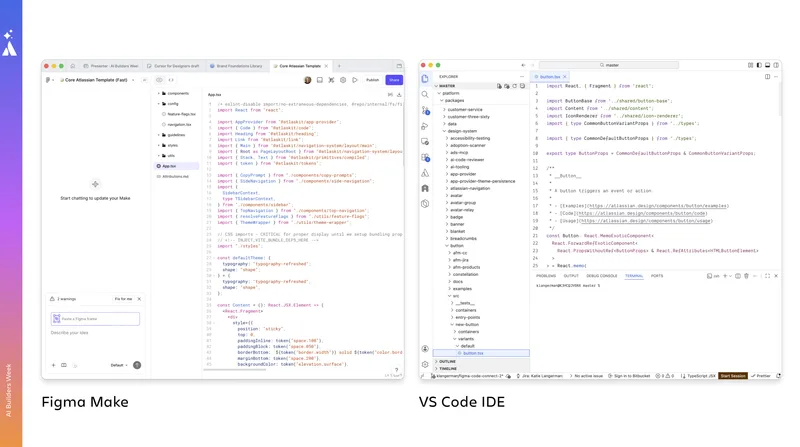
File Explorer (left)
Lists folders and files in your repo (e.g. apps/, packages/, components/).
Editor (center)
Shows the currently opened file (code, config, documentation).
Terminal (bottom)
Lets you run scripts such as installing dependencies, starting a dev server, or running test suites.
Ports view (bottom/side)
Lists services your environment is running, e.g. dev server on port 3000 or API mocks on other ports.
Working with AI coding assistants
Most modern IDEs now support AI extensions - examples include GitHub Copilot, Cursor's agent, and vendor-specific assistants like Atlassian's Rovo CLI.
For non-engineers, the most valuable patterns are:
- "Explain this" Ask the assistant to explain a file, component, or config in plain language.
- "Find this" Ask where a particular UI element, text, or route is defined in the codebase.
- "Change this for me" Ask it to update a heading, swap a color token, or add a new UI card based on an existing pattern.
You're still in control: you can always inspect the diff before accepting changes.
A practical example: tweaking a UI template
Imagine you're working with a design system and a prototyping kit. A typical flow:
Spin up a cloud dev environment for your frontend repo.
Start the dev server for the prototyping kit (e.g. npm run dev:prototyping).
In the Ports panel, open the port (e.g. 9000) in your browser.
Pick a template (e.g. "For You" page) and note its name/path.
Back in the IDE, open the file via search (Ctrl/Cmd+P).
Make a simple change - e.g. change a heading from "Pick up where you left off" to "Continue where you left off".
Refresh the browser - see your change reflected live.
You've just:
Navigated a real codebase → Edited a real component → Seen the result live - without touching production.
Let AI handle the hard parts
Instead of manually hunting through code, use your AI assistant:
Open the relevant template file in your editor.
In your AI assistant panel, attach the current file as context (optionally attach a screenshot too).
Ask for something specific, e.g.: Change the selected state color to our brand purple using design system tokens.
Review the proposed diff, accept or refine, then share the running prototype link with your team.
Safety and permissions
Even though you're working in "real" code, cloud dev environments typically include guardrails:
Protected by default
You're not on a production branch. You may lack permission to push to protected branches.
Easy recovery
If something breaks, restart the dev server, reset the environment, or discard local changes.
Always coordinate with your engineering team before attempting anything that should be merged or shipped.
How customers can apply this
Designers
- Explore your product's actual components and layouts in code
- Prototype interaction tweaks (timings, hovers, transitions) in a real environment
- Use AI assistants to turn Figma concepts into working UI skeletons
Product Managers
- Spin up a dev environment to understand what's feasible and how things are structured
- Use AI to scan the repo and documentation for feature impact analysis
- Pair with engineers to review flows and prototypes directly in the app
Analysts / Researchers
- Pull configuration or content from the codebase for experiments
- Use AI assistants to surface where metrics, flags, or experiments are wired
Good next steps
Ask your engineering team
Which cloud dev environment they recommend, which repo and scripts to use, and whether they have a Storybook-style setup.
Get an AI assistant configured
Start by using it to explain code and suggest small changes. GitHub Copilot, Cursor, or a platform-specific assistant.
Practice with low-risk experiments
Change copy or colors in a known template. Add a minor UI element. Use AI to help you refactor a tiny component.
Pair with an engineer
Let them drive while you ask questions, then swap - you drive while they supervise.