

Facilitator notes
This session works best when attendees bring a real workflow they want to change (and ideally their team along too!). Encourage them to think of a repetitive or time-consuming task prior to the session. In our curriculum, we used Rovo Studio as our agent-building platform.

Change workfows with agents and automations
Atlassian AI Builders Week curriculum
Take what's relevant and make it your own.
This session teaches attendees how to build agents and automations to replace their existing workflow.
What is Rovo Studio?
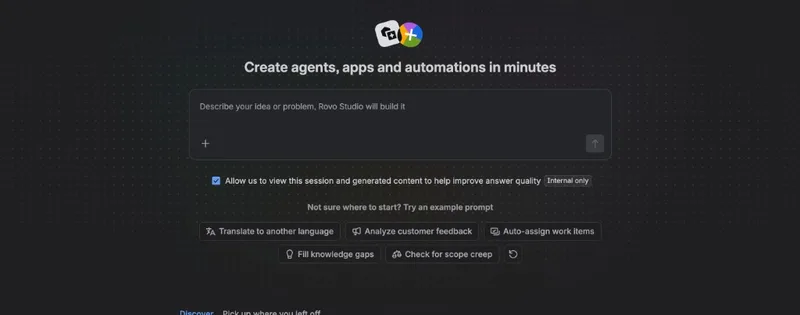
Rovo Studio is Atlassian's AI workspace for turning natural-language ideas into working solutions.
Design and manage agents
AI assistants that follow instructions, read content, and use tools.
Configure automations
Rules that trigger agents on schedules or events (e.g. page approved, issue transitions).
Start from:
A plain-English prompt (e.g. "Create an agent to generate a weekly status update for my team from Jira, Confluence, and Slack"), or built-in templates for common scenarios.
Building an agent in Rovo Studio
Every agent you build in Studio has three core parts:
Instructions: define the agent's role
Instructions tell the agent who it is, what to do, and how to answer.
"You are a weekly status reporter for my team."
"Summarize what the team worked on in the last week."
"Use this format: TL;DR, Delivery, Risks, Next week."
Advanced: step-by-step workflows
For complex agents, include ordered steps like "Fetch issues → Group into themes → Summarize each theme → Output using defined headings." This helps agents use tools in the right order and produce repeatable results.
Knowledge: connect the right sources
Configure what the agent can read:
Jira
Specific projects, boards, or filters
Confluence
Spaces, individual pages, or page trees
Other
Connected content sources supported by your edition
Agents only answer as well as the content you expose. If you notice missing context, add sources here and re-test.
Skills: tools and MCP integrations
Built-in tools
- "Search Jira issues"
- "Read Confluence pages"
- "Read Slack channel history"
MCP servers
- Design system MCP for pattern questions
- Product telemetry/analytics MCP
- Other SaaS tools wired to MCP
Testing and refining your agent
Once your agent is configured, activate it in Studio and use the built-in Test experience.
Ask yourself - does the response:
- Use the right structure, headings, and tone?
- Pull from the right data sources?
- Include timely, correct details?
Instructions
Clarify steps, tone, formatting, or constraints.
Knowledge
Add/remove spaces or projects; point at authoritative docs.
Skills
Enable/disable tools; add MCP tools for missing context.
Use debug/traces to see what's happening
Studio provides a debug or trace view to inspect runs:
- Which tools the agent called and in what order
- What results were returned
- Confirm MCP tools and product tools work as expected
- Check that time ranges and filters are correct
From agents to "agentic automations"
Manual testing in chat is a great start, but the real value comes when you make the agent run automatically.
Trigger
When to run
Agent step
The brain
Action step
What to do
Scheduled outputs
- Weekly status reports
- Customer feedback digests
- Recurring KPI summaries
React to events
- Page approved → notify partners
- Issue → Done → update portfolio
- New comment → triage action
Combine data sources
- Read Jira + Confluence + Slack
- Aggregate MCP-backed systems
- Single action from multiple inputs
Important: read-only behavior inside automations
When an agent runs inside an automation, read-only tools are allowed. Write tools are typically disabled to protect against unintended changes. The agent reads data and produces text/JSON, then explicit action steps do the writing (create pages, send messages, etc.).
Example: Scheduled weekly status page
Every Monday at 9am, generate and publish a weekly status page.
Build the agent
Reads
Jira projects/boards, Confluence space, Slack (optional)
Instructions
"Summarize my team's work. Group into: Delivery, Risks, Learnings, Next week. Output in markdown."
Tools
Jira search/read, Confluence read, Slack read, MCP tools
Create the automation
Schedule - Every Monday, 09:00
Use agent → Generate this week's status update
Create Confluence page with agent's output as body
Use "Run now" to test, then check the audit log and new page for accuracy.
Example: Multi-recipient decision notifications
When a decision page reaches "Approved", automatically send each stakeholder a personalized Slack message.
Design the agent
Create an agent that reads the decision page, identifies partners, looks up Slack IDs, and prepares a JSON array with personalized messages.
Output: valid JSON array with name, email, slackId, role, personalizedMessage per stakeholder
Build the automation
Page status changes to Approved
Inform partners for this decision page
For each stakeholder → Send Slack message using slackId and personalizedMessage
This pattern generalizes to multi-email notifications, bulk issue updates, and cross-system sync workflows.
Best practices and guardrails
For agents
Start with a clear, narrow purpose
Focus on a specific outcome (e.g. "weekly status summary").
Be explicit in instructions
Define steps. Specify format and tone. Include examples.
Control knowledge scope
Connect only the spaces/projects you need.
Iterate with test + debug
Look at tool usage in debug views. Adjust prompts and tools.
For automations
Test with a small, safe scope first
Run manually on test pages. Sanity-check outputs before rollout.
Keep agents read-oriented
Let agents think; let automation actions write.
Use structured output for complexity
Use JSON for multi-recipient scenarios. Branch and loop.
Document your design
Keep a Confluence page describing purpose, sources, and actions.
Where to go next
Start with a simple agent
Example: "Summarize Jira issues for project X by epic each week."
Turn it into a simple automation
Schedule it weekly and publish to a Confluence page.
Progress to structured outputs
Ask the agent to output JSON for multi-recipient workflows. Use branching and loops.
Explore MCP integrations
Ask your admin which MCP servers are available. Enable tools for richer agents.
The key question to ask yourself
"Could an agent in Studio think through this for us, and could an automation run it on a trigger?" Then use the patterns in this article to turn that idea into a working solution.